Field Sales Attendance in the City: Verify Every Client Visit and Pay Travel by the Kilometre
· 11 min read
It's 10 a.m. in Mumbai. Your sales associate has left home in Borivali and is heading to a distributor in Andheri, then a chemist chain in Bandra, a corporate client in Powai, a dealer in Thane, and one last call in Malad on the way back. Seven hours, five clients, maybe 40 km of traffic.
At the office, all you see is "present". If you're lucky, there's a WhatsApp location pin at lunch. At month end, a fuel bill and a list of places that may or may not have been visited.
That isn't a trust problem. It's a data problem. This guide is for sales heads, HR and payroll teams at companies with associates who move around the city all day: FMCG and pharma reps, insurance and real-estate advisors, B2B sales, brand promoters, merchandisers and service technicians. It covers what to track, what not to, and how a field associate's day turns into an accurate payslip.
Why office attendance doesn't work for field teams
An office register answers one question: did this person come in? For a field associate, that's the wrong question. You need to know:
| What you need to know | Why it matters |
|---|---|
| Which clients were visited | Proof the beat was covered |
| How long was spent at each | Productivity, not just presence |
| How far they travelled | Paying conveyance fairly |
| Whether a no-show day was really a no-show | Loss of pay, and disputes |
| That none of this needs a phone call | Managers stop chasing, associates stop reporting |
What you don't need is a live dot following someone around the city all day, or anything at all after work hours. Constant surveillance doesn't make a sales team sell more. It makes good associates leave.
Location at the moments that matter
The fair approach, and the one Novota HR & Payroll takes, records location only around work:
- At every punch-in and punch-out. A selfie and a GPS point at the start and end of each client visit.
- Optional pings while on duty. For remote and hybrid staff, a GPS point every few minutes, only while they are punched in.
- A trip route, only when the associate starts one, for claiming travel.
Nothing before the first punch-in, nothing after the last punch-out, and no live "where is everyone right now" map.
Setting up a city field team
1. Mark field associates as Remote
Each employee has a work arrangement: Office, Hybrid or Remote.
- Office staff are checked against the office location, and see an "Outside Office Zone" message if they punch in elsewhere.
- Remote and Hybrid staff never see that message. Every punch simply records where it was made.
A full-time field associate should be Remote. A sales manager who splits time between the office and the field fits Hybrid.
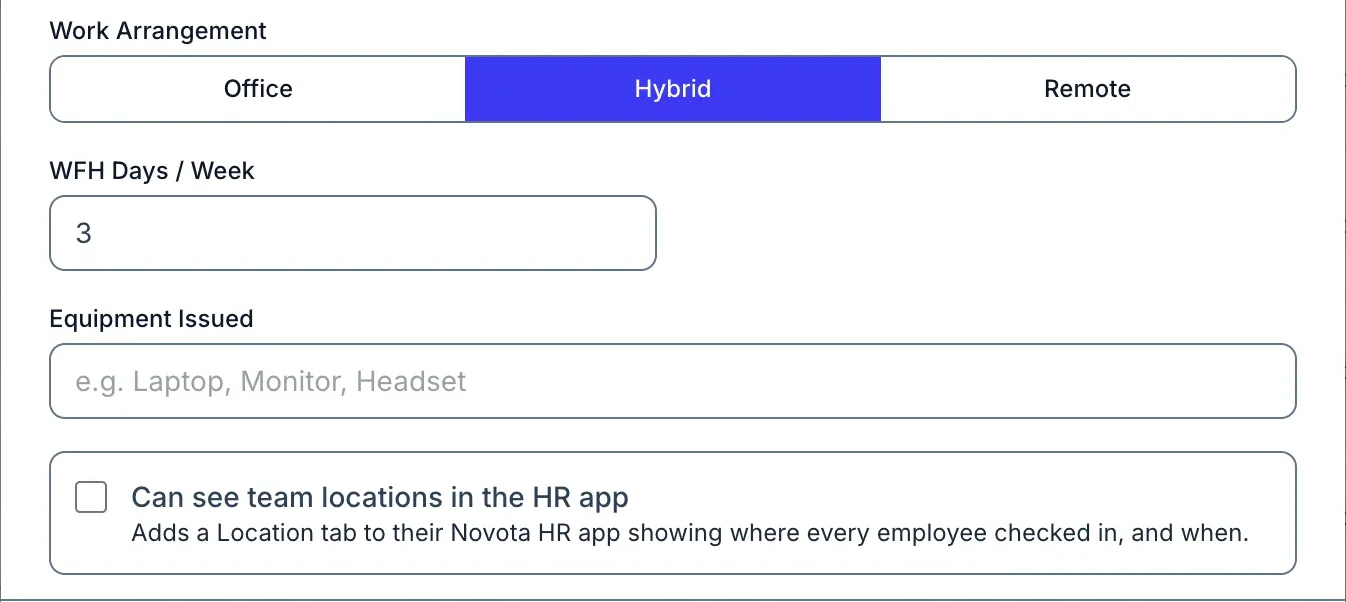 Work arrangement is set per employee. The checkbox below gives someone the team locations view.
2. Register your regular clients as sites
Add each distributor, dealer, chemist chain or corporate client you visit often as a Client Site with a radius in metres (25 to 5,000; 100 by default). When an associate punches in within that radius, the visit is matched and named after the client.
Don't know where to start? Fetch from past employee visits lists the places your team has punched in from over the last six months, most visited first. Your real beat is usually in there.
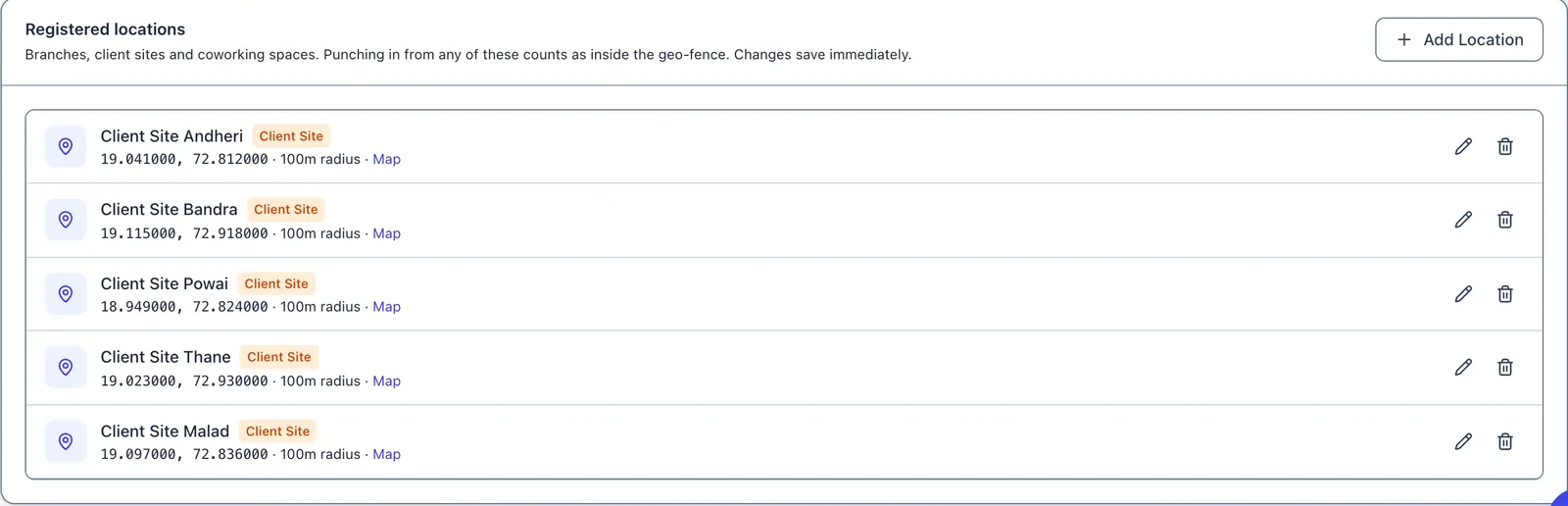 A city beat as registered sites. Each one is matched automatically when an associate punches in there.
Indoors, in basements and between tall buildings, phone GPS can drift by tens of metres. If genuine visits keep showing as unmatched, raise that site's radius a little.
3. Decide on pings
Switch on Collect GPS location periodically and choose an interval between 15 and 480 minutes. For a city sales team, 60 minutes gives about eight points across an eight-hour day: enough to show the day was spent in the field, and gentle on batteries.
How it behaves on each device:
- Android app: keeps recording with the app closed, after the associate allows location "all the time". A notification shows while it runs.
- Web portal and iPhone: pings are taken only while the page or app is open.
Pings stop at punch-out.
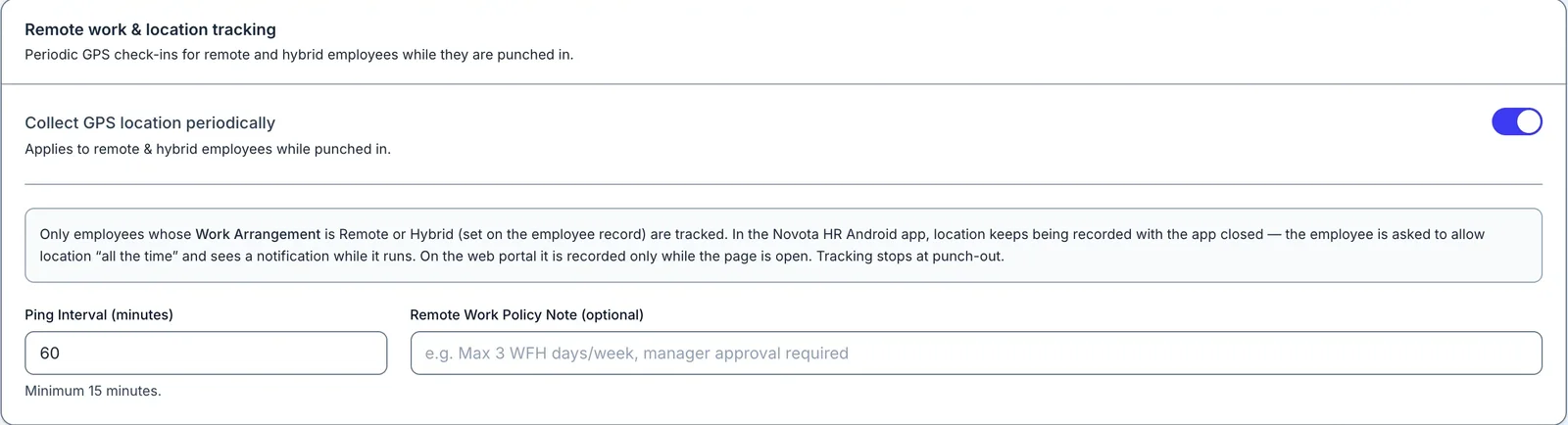 Pings apply only to remote and hybrid staff, and only while they are punched in.
4. Choose who can see team locations
Tick Can see team locations for the sales managers who need it. Be aware that it shows where every employee in the company checked in this month, not only their own team.
A day on the beat
The rule for associates is simple: punch in when you arrive at a client, punch out when you leave. One day can hold as many visits as they make.
Here is what one Tuesday looks like:
| Client | In | Out | Time at site |
|---|---|---|---|
| Distributor, Andheri | 10:05 | 10:50 | 45 min |
| Chemist chain, Bandra | 11:30 | 12:15 | 45 min |
| Corporate client, Powai | 13:40 | 14:30 | 50 min |
| Dealer, Thane | 15:30 | 16:20 | 50 min |
| Retailer, Malad | 17:10 | 17:45 | 35 min |
| Day | 10:05 | 17:45 | 3 h 45 min at sites |
The working day runs from the first punch-in to the last punch-out: 7 h 40 min. The visits show where that time went, with 3 h 45 min in front of clients and the rest on the road. In a city, that ratio is normal. What matters is how it moves week to week, and which associates spend twice as long at the same kind of client.
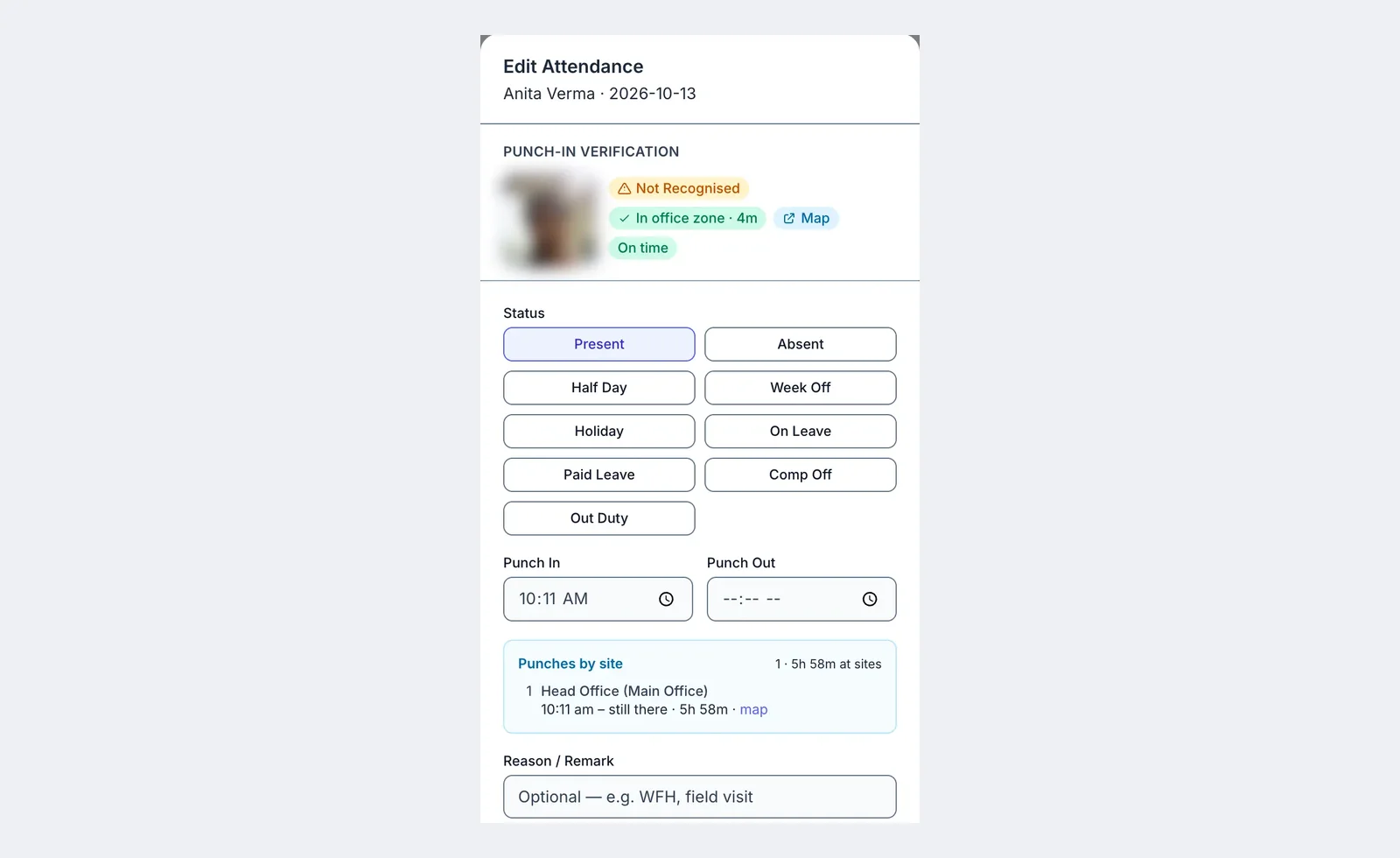 Each day shows the punch verification, the distance from the matched place, and every site visited.
Forgot to punch out? HR can set the punch-out time, and the visit is labelled "punch-out set by HR", so it's clear which times were corrected.
What a sales manager sees
In the app: team locations
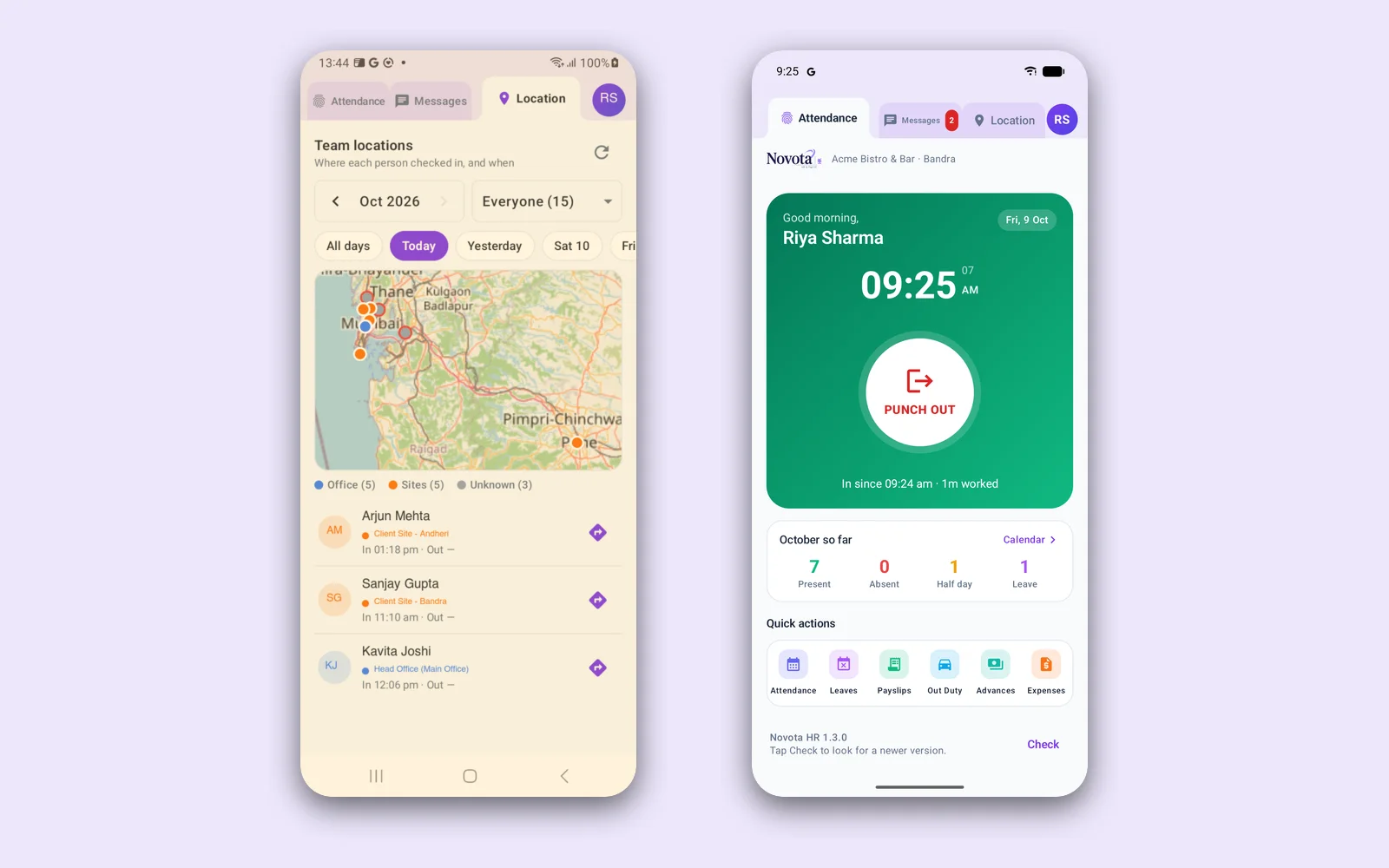
Managers with the permission get a Location tab in the Novota HR app: a map and a list of where each person checked in today, yesterday or on any day this month, colour-coded as office, registered site or unknown place (the screen at the top of this post).
On the web: four location reports
Under Reports → Location:
- Site Visits: one row per visit, with the employee, site, punch-in and punch-out times, time at site, and whether it matched a registered site (with the distance), was not a registered site, or had no GPS. Export CSV includes the coordinates, so sales ops can match visits against orders in the CRM.
- Work Locations: every punch-in for the month on a map. Unknown places within 150 metres of each other count as one, which makes it easy to spot a frequent stop worth registering.
- Field Coverage: one map with out-duty punch-ins, the start of every conveyance trip and every site visit. Useful for territory reviews: who covers which areas, where the gaps are, and where two associates overlap.
- No Ping Days: for each remote or hybrid employee, every day is green (pings recorded), red (punched in but no pings) or grey (not punched in), with a coverage percentage.
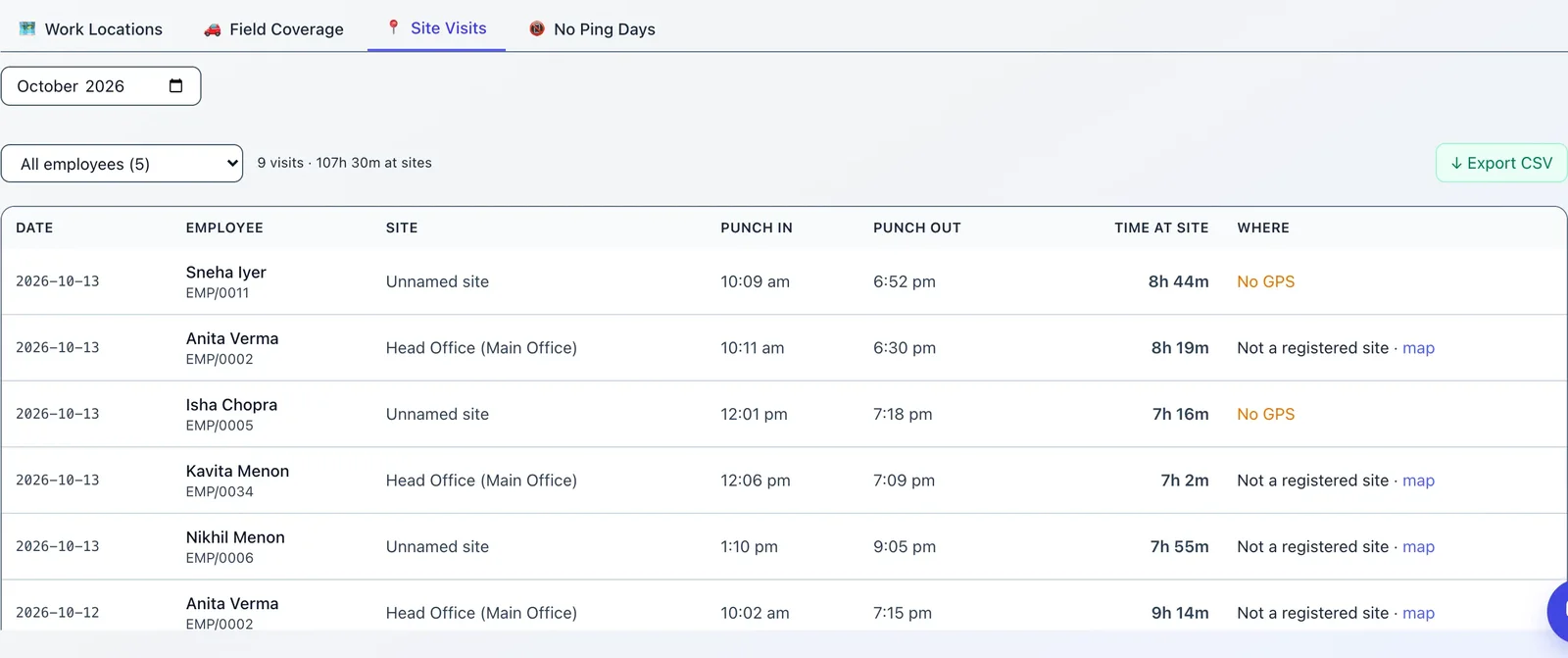 The Site Visits report, shown here with sample data from a demo company.
A red day on No Ping Days usually has an ordinary explanation: location set to "only while using the app", a phone in battery-saver mode, or an iPhone with the app closed. Check the phone settings before you have a difficult conversation.
Travel within the city: conveyance by the kilometre
Local travel is the expense that causes the most month-end friction in a sales team. Novota handles it in the app:
- Start Trip records the route by GPS until the associate ends it.
- Log Trip is a manual entry with date, purpose, from, to, vehicle, distance and rate per km.
Vehicles are two-wheeler, car or taxi, auto-rickshaw and public transport. The default rate is ₹8 per km, and the associate can change it when logging, so publish your own policy rate for each vehicle.
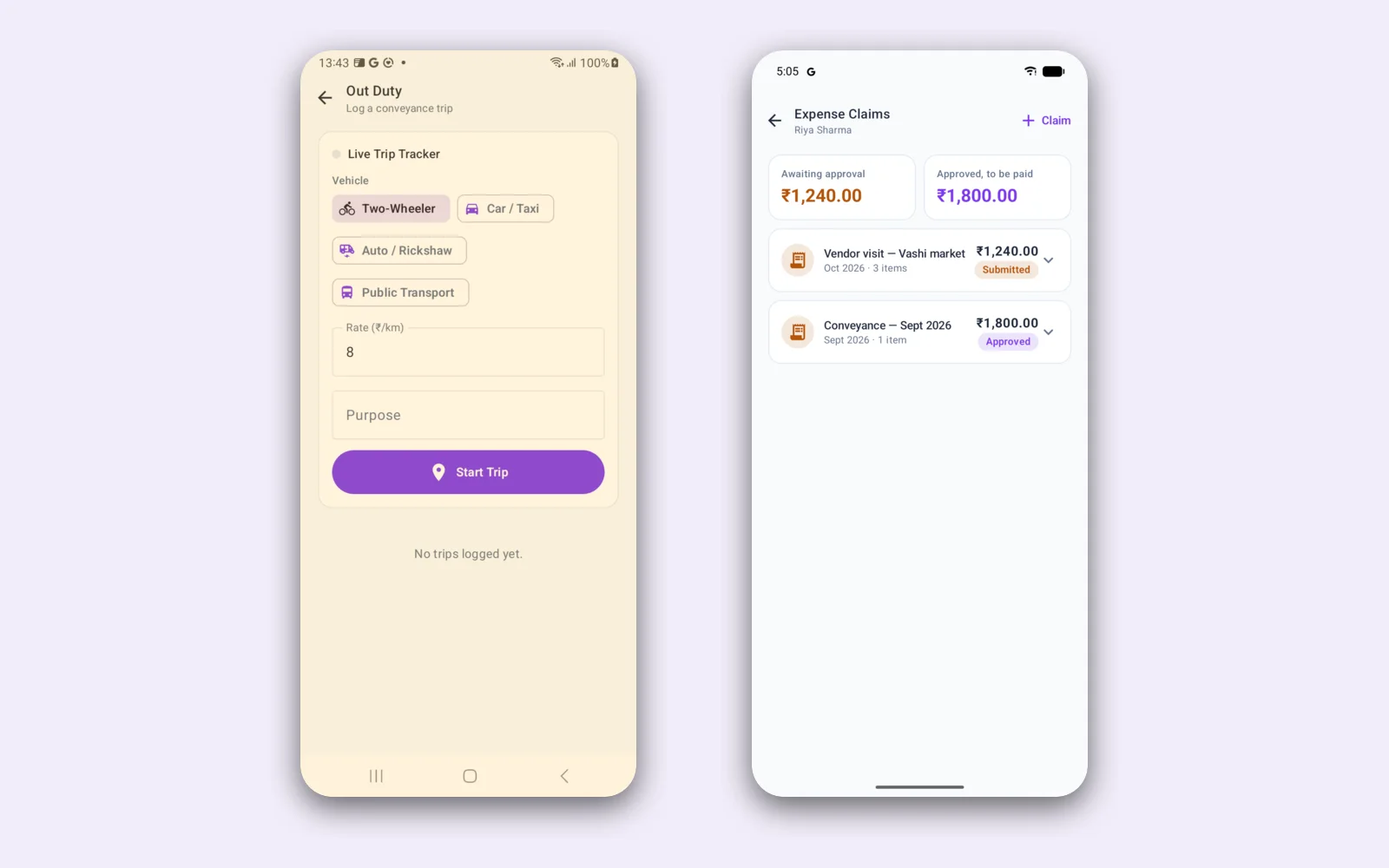 Start a trip before leaving for a client. Other spends go in as expense claims.
From trip to payment: a manager approves or rejects each trip. Approved conveyance is then paid either by Reimburse through Novota Accounts, or by adding the amount under Payroll → Adjustments → Conveyance so it is paid with salary. The Conveyance tab totals what is pending, approved and reimbursed.
Small spends that aren't distance-based, such as parking, tolls or a client coffee, go in as expense claims with a category, date and amount. Once approved, Pay with salary adds them to the next payslip.
Example: an associate on a two-wheeler averages 38 km a day across 22 field days. That's 836 km × ₹8 = ₹6,688 in conveyance for the month, every kilometre backed by a trip record.
From the field to the payslip
At month end, everything above lands in one payroll run:
| On the payslip | Where it comes from |
|---|---|
| Payable days | Punches. A day with no punch at all is marked absent overnight, skipping holidays and week-offs |
| Loss of pay | Those absent days, e.g. 1 day on a ₹24,000 monthly gross over a 30-day month = ₹800 |
| Conveyance | Approved trips, entered under Payroll → Adjustments → Conveyance |
| Expense claims | Approved claims marked Pay with salary |
| Advances | Any salary advance, recovered in instalments |
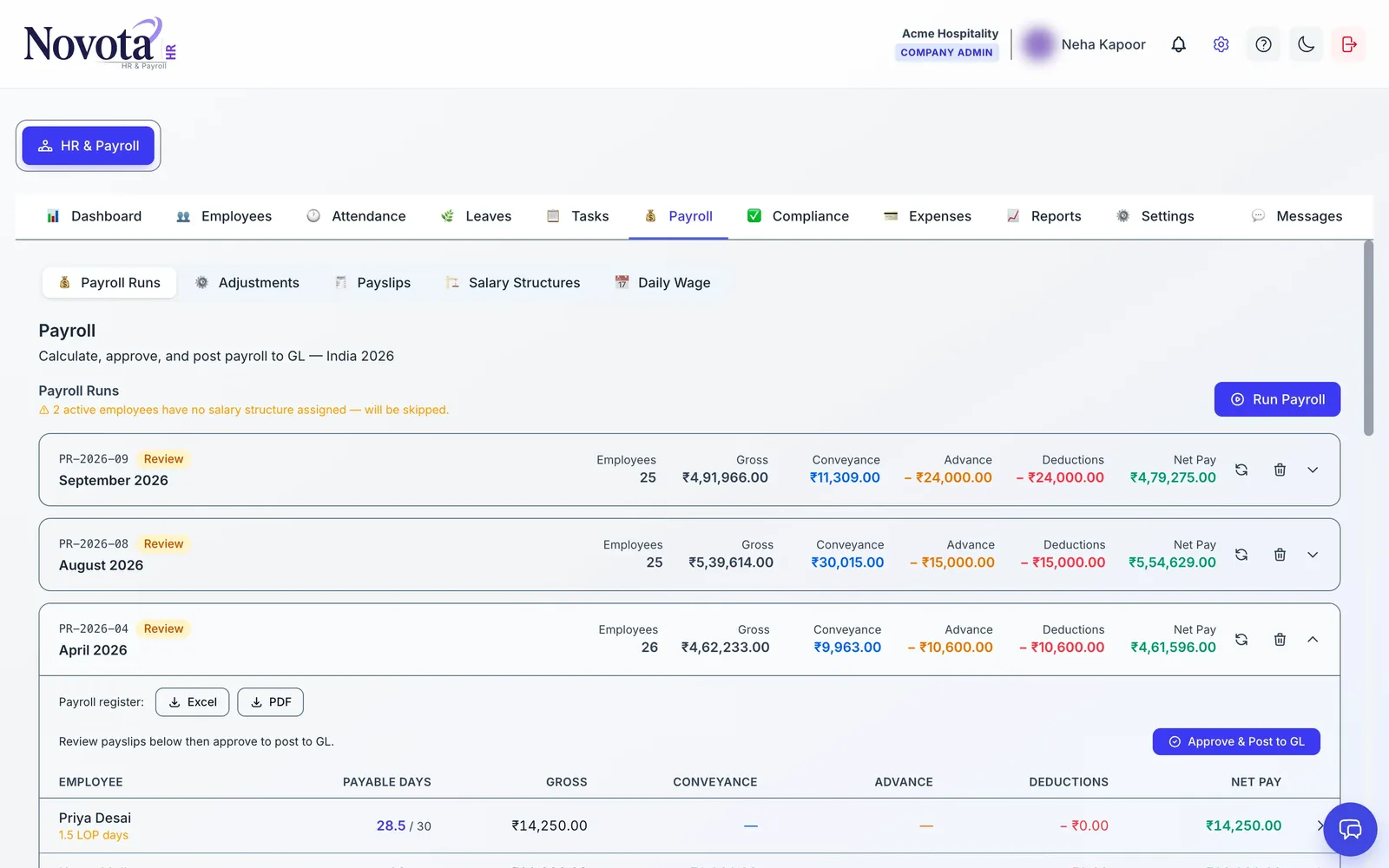 Conveyance has its own column in every payroll run.
The result: every rupee on a field associate's payslip has a punch, a map pin or a receipt behind it. The associate can see the same records in the app, so the month-end argument mostly disappears.
Ground rules that keep it fair
Software works best with a clear, short policy. Write down and share:
- Punch in at every client, punch out when you leave. No back-filling from memory.
- Start a trip before you ride, not after.
- Our rate is ₹X per km for a two-wheeler and ₹Y for a car. One number per vehicle, no negotiation.
- Claims within seven days of the spend. Keep the bill.
- Location is recorded only while you are punched in. Never before or after work.
- Managers review visits weekly, not by calling you in the middle of a meeting.
Office staff who occasionally visit a client, like an inside sales executive or an accounts person collecting a cheque, can stay on Office. If they punch in away from the office, mark that day Out Duty in Attendance. That clears the "Outside zone" flag, and the visit shows on the Field Coverage map.
Privacy and trust
Tell your team before you switch location on: what is recorded (punches, and pings while punched in), why (visits, travel pay, attendance), who can see it, and that it stops at punch-out.
Two practical notes:
- The Remote Work Policy Note in Novota's location settings is saved for your records but isn't shown to employees. Share the policy yourself, in the offer letter, the handbook or the team group.
- Employee location is personal data under India's Digital Personal Data Protection Act, 2023. Give clear notice, collect only what the job needs, and check the details with your advisor.
What Novota doesn't do
Being clear about this saves surprises later:
- No live tracking. There's no "where is everyone right now" map, only punches, pings while on duty, and trips.
- No beat planning or route optimisation, and no order capture or visit notes. Keep your CRM for those, and reconcile visits using the Site Visits CSV.
- No automatic alert when an office employee punches in outside the zone. They see a warning and can proceed. Review those punches in Attendance.
- No automatic daily allowance. Per-day allowances go in as expense claims.
Pricing
Novota HR & Payroll is ₹14,000 a year for up to 100 employees, with location tracking, conveyance, claims, payroll and the Android app all included. The first month is free, with no credit card. For larger teams, talk to us.
For the full monthly payroll cycle, from CTC to PF, ESI and TDS, read our HR and payroll guide for Indian businesses.
Frequently asked questions
Can I see where my sales team is right now?
Not as a live dot on a map. Novota records location when an associate punches in and out at each stop, and, if you switch it on, a GPS ping every few minutes while a remote or hybrid employee is punched in. Nothing is recorded before punch-in or after punch-out.
How do I verify that a sales associate actually visited a client?
Ask them to punch in on arrival and punch out on leaving. Each pair becomes a row in the Site Visits report with the place, the times and the time spent. Register your regular clients as Client Sites so the visit is matched and named.
How is local travel reimbursed per kilometre?
The associate starts a trip in the app with Start Trip, which records the route by GPS, or logs it manually with distance and rate. The default is ₹8 per km and can be changed. After approval it is paid through Accounts, or added under Payroll → Adjustments → Conveyance so it is paid with salary.
How often are pings recorded, and do they drain the battery?
You choose the interval, from 15 to 480 minutes, with 60 as the default. Pings run only while the employee is punched in and stop at punch-out. A longer interval uses less battery.
Do iPhone users get tracked the same way?
Punch-in and punch-out locations are recorded the same way. Periodic pings on iPhone and on the web portal are taken only while the app or page is open, while the Android app keeps recording in the background until punch-out.
Who can see my team's locations?
Admins, and anyone you give 'Can see team locations in the HR app'. That permission shows where every employee in the company checked in this month, not only their own team, so give it only to people who need it.