Tasks and Team Chat Inside Your HR App: How Novota Replaces the Work WhatsApp Group
· 8 min read

Most restaurants, shops and small offices run on WhatsApp. One group for the whole staff, one for managers, one for the kitchen, and a dozen private chats on the manager's personal phone. Instructions scroll away under good-morning messages. Nobody can tell whether the cold room was cleaned last night. A cook who left in March is still in the kitchen group.
Chat isn't the problem. The problem is using a personal messaging app to run work: no record of what was asked, no proof it was done, and no link to who actually works for you today.
Novota HR & Payroll has team chat and tasks built in, in the same app your staff already open to punch in, apply for leave and download payslips. This guide explains how it works, with examples from a restaurant team.
Why work chat belongs in the HR app
Putting chat and tasks next to attendance and payroll fixes a few things a general messaging app can't:
- Only your current team is in it. The people in Team Messenger are your employees in Novota, and when someone leaves, their portal access is switched off.
- Your org chart decides who can assign work. Supervisors can give tasks only to the people below them.
- One app for staff. Punch in, check the roster, see the payslip, read the notice and finish the checklist, all in one place.
- Work and personal stay apart. A manager's instruction doesn't get lost between family photos.
Messages: chats, groups and the company group
Team Messenger has three tabs: Chats, Updates and Tasks.
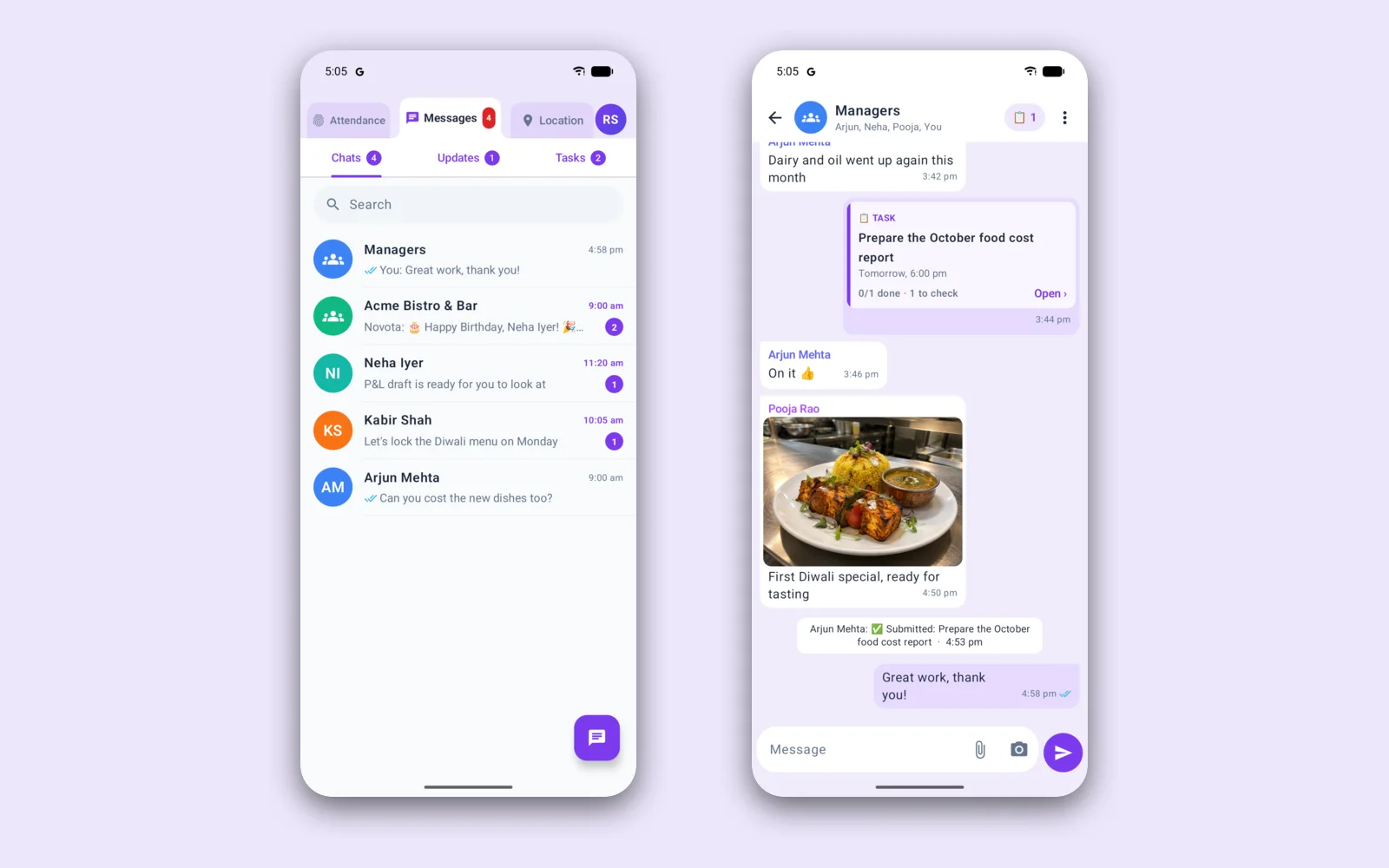 Chats on the left. On the right, a managers' group where a task, a photo and the replies sit in one thread.
What you can do in Chats:
- The company group: everyone in the company is in it, and nobody can leave it. Good for things every person must see.
- One-to-one chats and groups of up to 256 people, such as "Managers", "Kitchen" or "Bandra floor team".
- Text, photos and videos. A plate for tasting, a broken fridge seal, a delivery that arrived short.
- Delete for everyone, if you sent something by mistake.
Only employees who have signed in to the app or portal can receive messages. Anyone who hasn't yet shows greyed out, a useful nudge to finish onboarding.
Shift changes reach people here too: when a manager publishes the roster, each person whose shift changed gets a message in chat.
Updates: announcements people acknowledge
A notice in a busy group gets read by the first ten people and buried for the rest. Updates keeps announcements separate from chat, with a type on each:
- General: "Diwali menu tasting, Saturday 4 pm"
- Policy: "Uniform policy from 1 November"
- Emergency: "Gas supply off till 3 pm, kitchen closed for lunch"
- Birthdays and work anniversaries
People acknowledge an announcement, so you can see who has read it and who hasn't, which matters for a policy change. Birthday wishes are posted to the company group automatically at 9:00 a.m. IST.
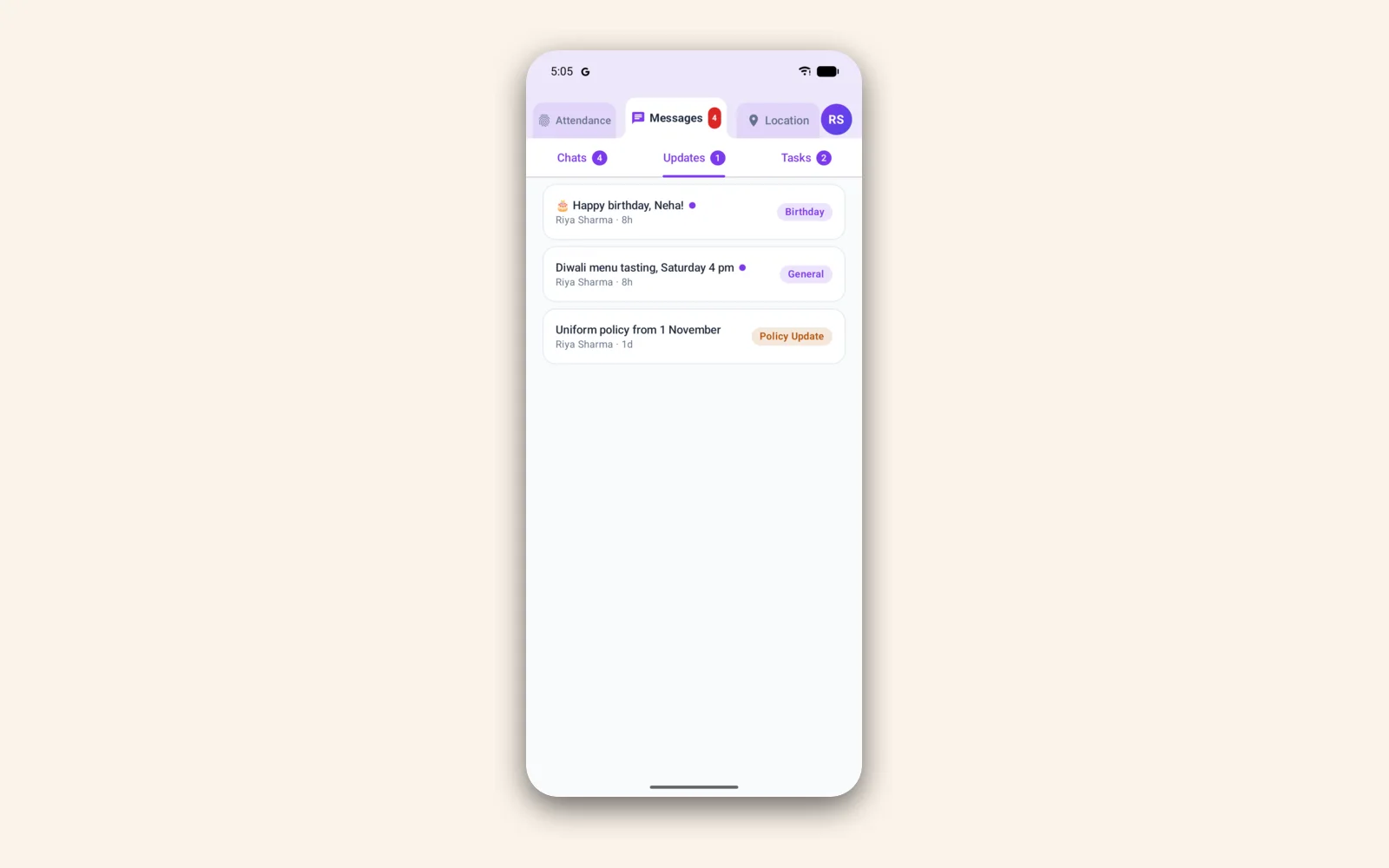 Notices with a type, separate from the day's chatter.
Tasks: work that's assigned, done and checked
A task in Novota is more than a reminder. It has:
- A title and description, and up to 30 steps as a checklist.
- People: one person, several, a department, a team, or everyone.
- A due date and time.
- What counts as done: a note, a photo, and whether it needs your approval.
- Repeat: daily, weekly on chosen days, or monthly on a chosen day.
From a message to a task
Most tasks start as a line in chat: "Can you cost the new dishes too?" Open the message's menu and choose Make task. The message becomes the task title, you add the steps, people and due date, and the task card appears right there in the conversation with its progress.
Doing the task
The person it's assigned to sees it under Tasks, ticks off each step, adds a note or photo if asked, and taps Mark done — send for check. Its status moves through To do → In progress → Waiting for check → Done, or Sent back if changes are needed.
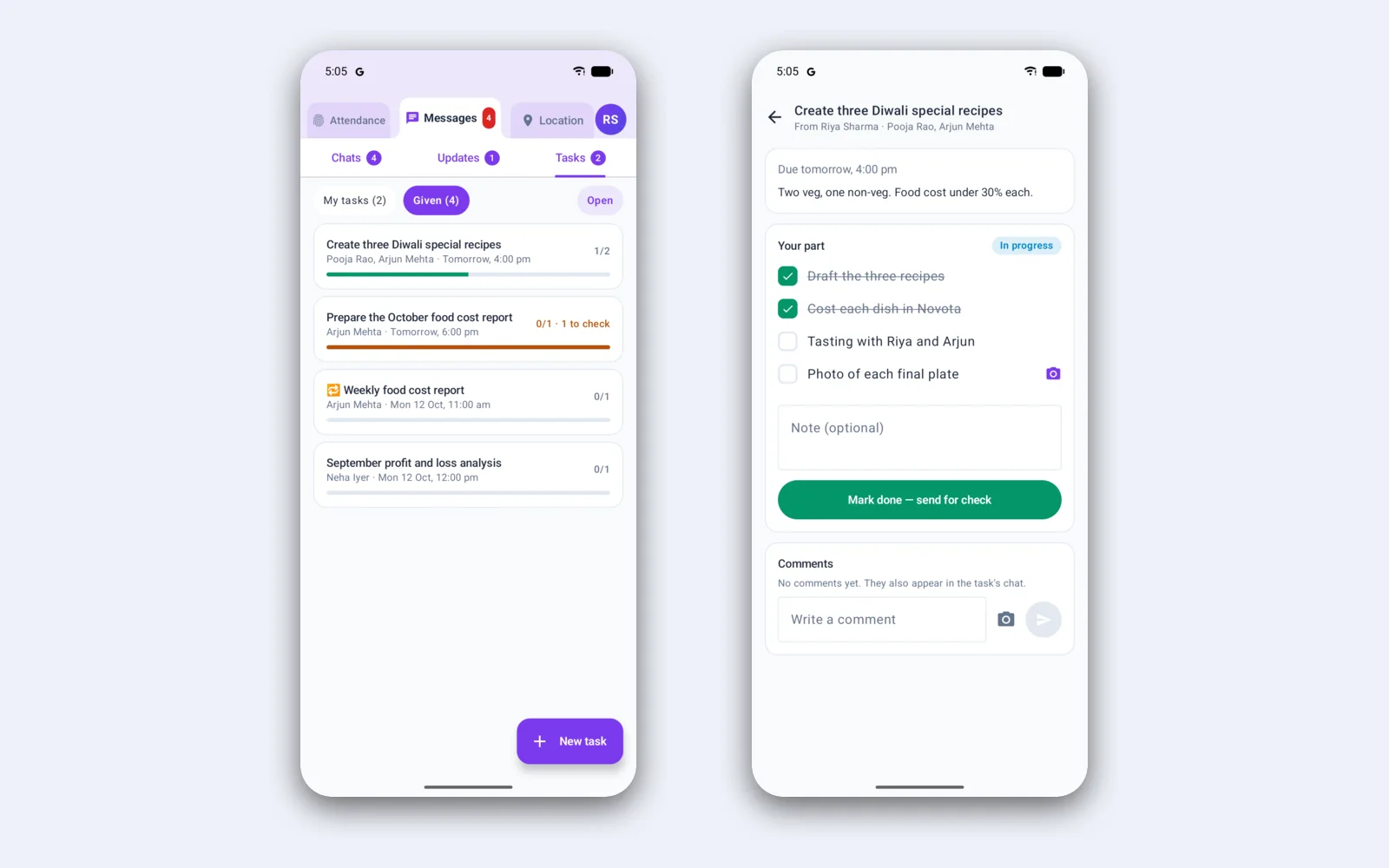 Tasks you've given, with progress, and one in progress: two steps done, a tasting to go, and a photo of each final plate.
Comments on a task also appear in the task's chat, so the conversation and the checklist stay together.
Checking it
For tasks that need approval, the manager sees the steps, the note and the photo, then taps Approve or Send back with a comment saying what to fix.
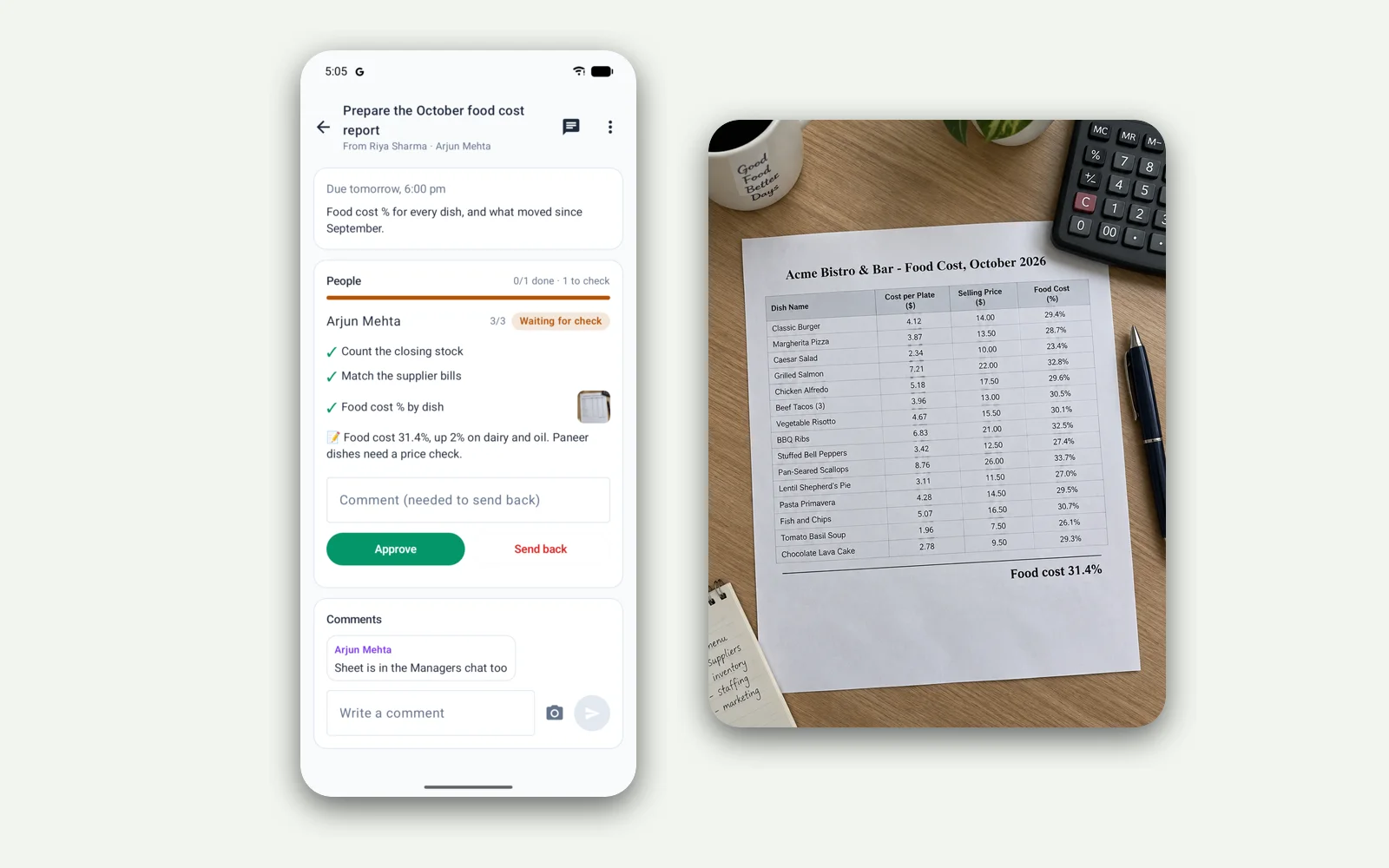 Three steps done, a note on what moved, and a photo of the sheet. Approve, or send it back.
Who can give tasks
- Office (admin) users can give tasks to anyone, to everyone or to a branch.
- Supervisors with Can give tasks switched on can give tasks only to people below them in the org chart. A kitchen head can assign to cooks, but not to the restaurant manager.
- An assistant can give tasks on behalf of their manager's team.
Reminders and the task board
A reminder goes out about an hour before each task is due, and overdue tasks are highlighted. On the web, the Tasks tab is a board for the whole company, filtered by Open, Sent for check, Overdue, Repeating and Done. You can comment, archive a finished task, or stop a repeating series.
Repeating tasks: checklists that run themselves
Repeating tasks replace the laminated checklist on the kitchen wall. Set them once, and they come back on their own, each with its own steps, proof and reminder.
| Task | Repeat | Proof |
|---|---|---|
| Opening checklist: counters, gas, display, cash float | Daily, 9:00 a.m. | Photo of the counter |
| Closing: cold room, freezer temperatures, gas off | Daily, 11:30 p.m. | Photo of the cold room |
| Weekly stock count of top 50 items | Weekly, Monday | Note with the count sheet |
| Food cost report | Weekly or monthly | Photo of the sheet, approval |
| Deep clean of the kitchen exhaust | Monthly | Photo, approval |
| Shelf display check in each store | Weekly | Photo per store |
For field teams, the same works for a weekly market report or a monthly competitor price check.
Where your team uses it
- Novota HR Android app: a Messages tab with Chats, Updates and Tasks, right next to Attendance and Location.
- Staff portal at emp.novota.co, on any phone or computer, including iPhone: the same Chats, Updates and Tasks tabs. On iPhone, add the portal to the Home Screen and switch on notifications to get a pop-up with sound when someone messages you or gives you a task.
- Web admin: Team Messenger as a side panel, plus the company-wide Tasks board.
Privacy: messages aren't stored on our servers
Novota relays messages. The server holds a message only until the recipient's device collects it, and for no more than 7 days. The history lives on each person's device. A sender can delete a message for everyone.
Tasks are different. They're work records, so they stay on the task board with their steps, notes, photos and approvals for managers to review.
How it fits with HR and payroll
Tasks and chat don't change anyone's pay. Novota doesn't link task completion to salary or incentives, and you shouldn't have to. What they do is sit in the same place as everything else:
- Staff punch in, check their shift, read the notice and finish the opening checklist in one app.
- Roster changes arrive as chat messages.
- Policy announcements (uniforms, leave rules, salary dates) get an acknowledgement, not a "seen" you have to guess at.
- When someone leaves, their portal access is switched off with the rest of their HR record.
What to know before you switch
- People need a login to receive messages. Invite everyone and get them signed in during week one.
- Repeats are daily, weekly or monthly. For a yearly item, such as a licence renewal, set a one-off task with a due date.
- Message history is kept on each device, not in a cloud archive. Anything that must be on record belongs in a task or an announcement, not a chat.
- Start small: one company group, one managers' group, and three repeating checklists. Add more once the team has the habit.
Pricing
Team Messenger and Tasks are part of Novota HR & Payroll: ₹14,000 a year for up to 100 employees, with attendance, the shift roster, leave, payroll, PF, ESI, PT and TDS included. The first month is free, with no credit card.
For the full monthly cycle, read our HR and payroll guide for Indian businesses. For teams on the move, see field sales attendance in the city.
Frequently asked questions
Who can give tasks in Novota HR?
Office (admin) users can give tasks to anyone, to everyone or to a branch. A staff member with 'Can give tasks' switched on can only give tasks to people below them in the org chart, and an assistant can give tasks on behalf of their manager's team.
Can I make staff send a photo when a task is done?
Yes. When you create a task you can add up to 30 steps, ask for a note or a photo, and require your approval before it counts as done. You then approve it or send it back with a comment.
How do repeating tasks work?
Choose Repeat when creating the task: daily, weekly on the days you pick, or monthly on a chosen day, at a set time. A reminder goes out about an hour before it is due, overdue tasks are highlighted, and you can stop the series at any time.
Can a chat message be turned into a task?
Yes. Open the message's menu and choose Make task. The message text becomes the task title, and you add the steps, people and due date.
How long are messages kept?
The server holds a message only until the recipient's device has collected it, and for at most 7 days. Message history is stored on each person's device, and a sender can delete a message for everyone.
Who can I message?
Anyone in the company who has signed in to the Novota HR app or the staff portal. Employees without a login are shown greyed out. Everyone is in the company-wide group, which nobody can leave, and you can create groups of up to 256 people.