Purchase Invoice Entry in Tally Prime: From Paper Pile to Posted Voucher
· 10 min read

Every business that buys anything ends up with the same pile. Supplier bills arrive in delivery bags, on WhatsApp and by email, and somebody has to type every one of them into Tally: supplier, invoice number, date, each line, each tax, the total, the narration. Then check it. Then find the one that didn't match.
Purchase entry is the least glamorous job in accounting and one of the most important. It decides how much input tax credit you can claim, what you owe each supplier, and whether your stock and food cost numbers mean anything.
This guide is for business owners, accountants and back-office teams who use Tally Prime. It covers what a correct purchase voucher needs, the mistakes that quietly cost money, and how to take the typing out of it.
Why purchase entry matters more than it looks
A purchase voucher in Tally is not just a record of spending. It feeds:
- Input tax credit (ITC). The GST you paid suppliers is only yours to set off if the purchase is recorded correctly and matches what the supplier filed.
- Supplier balances. Who you owe, how much, and since when.
- Stock and costing. In item invoice mode, each purchase moves inventory. Wrong quantities mean wrong stock and wrong margins.
- Your GST returns and audit. Mismatches between your books and GSTR-2B are the first thing a reconciliation, or an officer, will find.
A typo in a ₹939 bill doesn't hurt much. The same typo repeated across 300 bills a month does.
What a correct purchase voucher in Tally Prime needs
From Gateway of Tally, open Vouchers and press F9 for Purchase. A complete entry has:
| Field | What goes in it | Why it matters |
|---|---|---|
| Supplier invoice no. and date | Exactly as printed on the bill | GSTR-2B matching uses these |
| Party A/c name | The supplier's ledger under Sundry Creditors, with GSTIN and state | Decides CGST/SGST vs IGST, and the supplier balance |
| Purchase ledger | e.g. Purchase (Office Supplies), Purchase (Raw Material) | Puts the cost in the right head |
| Line items | Stock item, quantity and rate (item invoice) or amount (accounting invoice) | Stock and costing |
| Additional charges | Freight, packing, loading, with their own GST rate | Often forgotten, often taxed |
| GST ledgers | Input CGST + Input SGST, or Input IGST | Your ITC |
| Narration | Supplier and invoice reference | Makes the Day Book readable a year later |
Item invoice or accounting invoice?
Press Ctrl+H on the voucher to switch mode. Use item invoice when you track stock in Tally: each line is a stock item with a quantity and rate. Use accounting invoice for services, expenses, or if you only need the ledgers: each line is an amount against a ledger.
CGST + SGST, or IGST?
The first two digits of a GSTIN are the state code: 27 is Maharashtra, 29 is Karnataka, 07 is Delhi. If the supplier's state matches your place of supply, it is an intra-state purchase: split the tax into CGST and SGST. If not, it is inter-state: the whole tax is IGST. Get this wrong and the credit sits in the wrong ledger.
The mistakes that cost you money
Most purchase-entry errors fall into a handful of patterns:
- Invoice number typed differently from the bill. "SS/26-27/1087" entered as "1087" won't match the supplier's filing.
- Wrong date. An invoice dated the 30th entered on the 2nd lands in the wrong month and the wrong return period.
- IGST vs CGST/SGST mix-up, usually with a new supplier or one whose ledger has no state.
- Additional charges skipped or untaxed. Packing at ₹140 with 5% GST is ₹7 of credit you forgot.
- Totals that don't add up. A rate misread as 280 instead of 230, and nobody re-checks the line arithmetic.
- Duplicate entries. The same bill arrives on paper and on WhatsApp and gets entered twice.
- New supplier, no ledger. Entry stops while someone creates the party with its GSTIN and address.
Three GST rules worth remembering
- ITC follows GSTR-2B. You can claim credit only for invoices your supplier has reported, which appear in your GSTR-2B. Accurate invoice numbers and dates are what make the match possible.
- There is a deadline. ITC for a financial year must be claimed by 30 November of the following year, or by the date you file the annual return, whichever is earlier.
- Pay within 180 days. If you don't pay a supplier within 180 days of the invoice date, the credit has to be reversed until you do.
How long manual entry really takes
Say a bill takes four minutes to type and check, which is fast for a three-line invoice with a packing charge. Then:
| Bills per month | Time spent entering |
|---|---|
| 100 | about 7 hours |
| 300 | about 20 hours |
| 600 | about 40 hours, a full working week |
That is before re-work for errors and the hunt for a missing bill at month end. And the work bunches up: most of it lands in the last week of the month, when returns are due.
One invoice, end to end, with Novota
Novota for Tally reads the bill, checks the arithmetic, maps it to your Tally ledgers and posts the voucher into Tally Prime. Here is a single real-format invoice going through it: a three-line bill from Sunrise Supplies for ₹939.
1. Snap or drop the bill
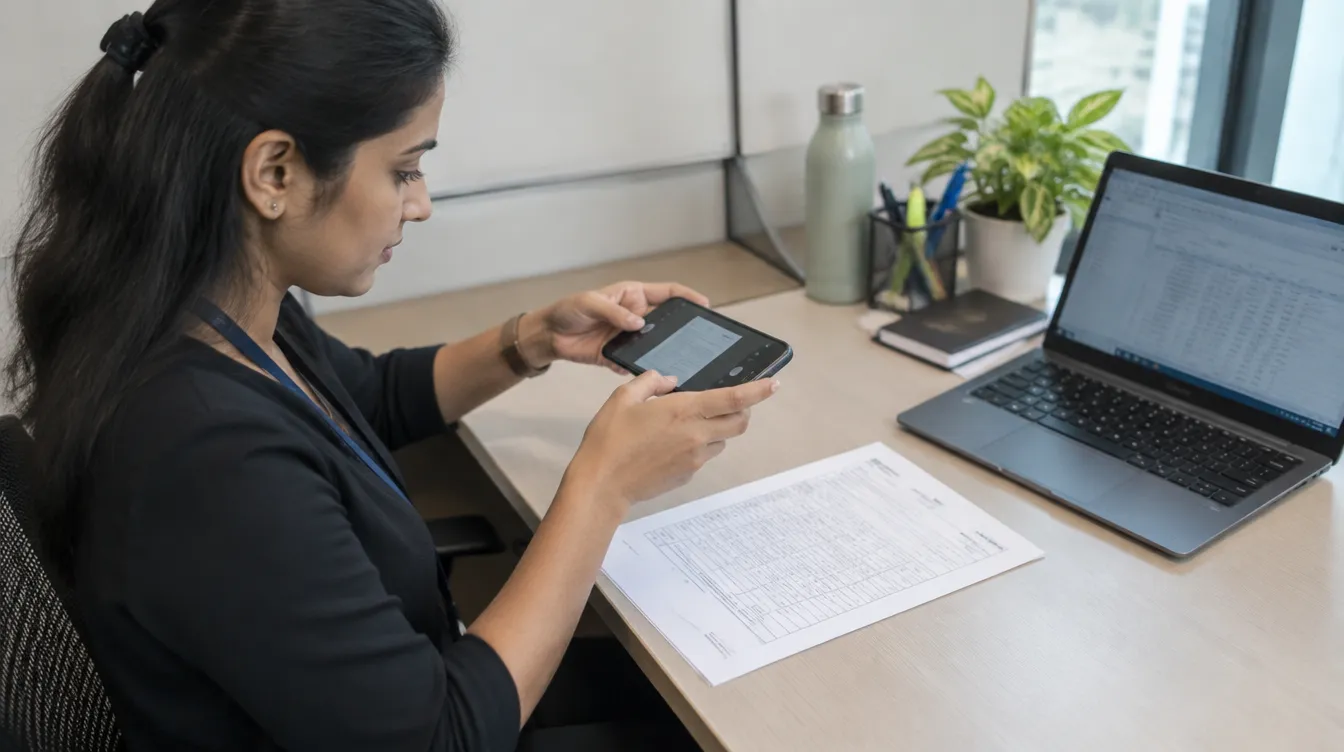 No scanner needed: a phone photo is enough.
Drag invoices into the Invoice Queue, up to 25 at a time, or photograph them on your phone. Photos and scans in JPG, PNG and WebP are all fine, and multi-page bills are stitched together.
2. Novota reads every field and checks the maths
Supplier name, GSTIN, address, invoice number and date, buyer details, each line item, additional charges with their GST rate, and the totals all come out in a few seconds. It marks this one as an intra-state (CGST + SGST) invoice: both GSTINs start with 27, Maharashtra.
The math auditor then re-adds every line, the subtotal, the tax and the grand total. Here it checked three items and arrived at ₹939.00, matching the bill.
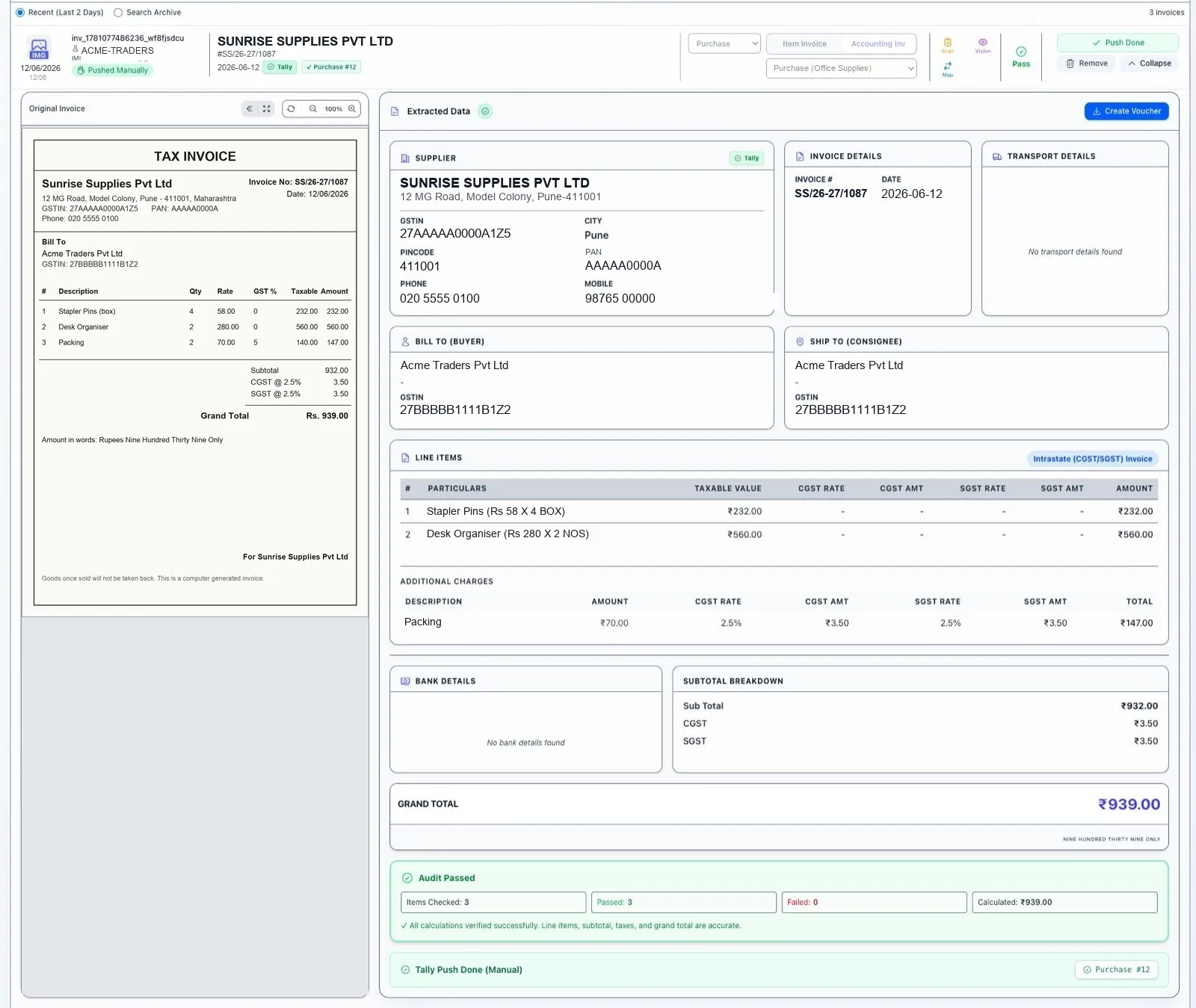 The original bill on the left, the extracted data on the right, and an audit that re-checks every total.
3. Review the voucher before it goes anywhere
The voucher opens with the original bill beside it. Each line is already mapped to a purchase ledger from your Tally masters, the GST rate is set per line, the CGST and SGST are worked out (₹7.00 in total), and the narration is written for you. Change anything — a ledger, a rate, the voucher type, item or accounting mode — and the totals recalculate as you type.
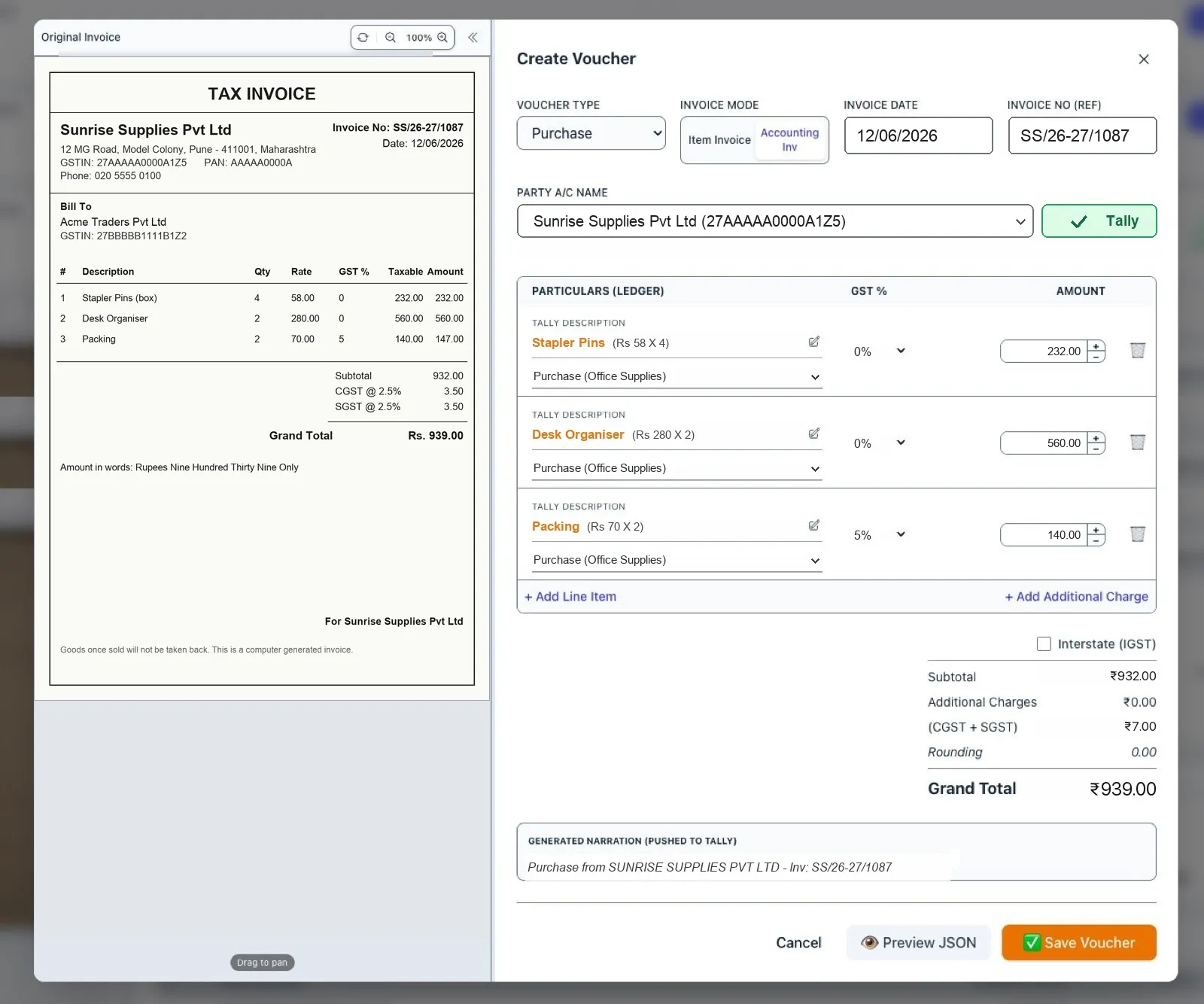 Every line mapped to a Tally ledger, GST per line, and the narration generated.
4. The voucher lands in Tally Prime
Press Save Voucher and the Purchase voucher appears in Tally Prime: party, supplier invoice number, date, the three purchase lines, Input CGST ₹3.50 and Input SGST ₹3.50, a total of ₹939.00, and the narration. It shows up in the Day Book like any voucher you typed yourself.
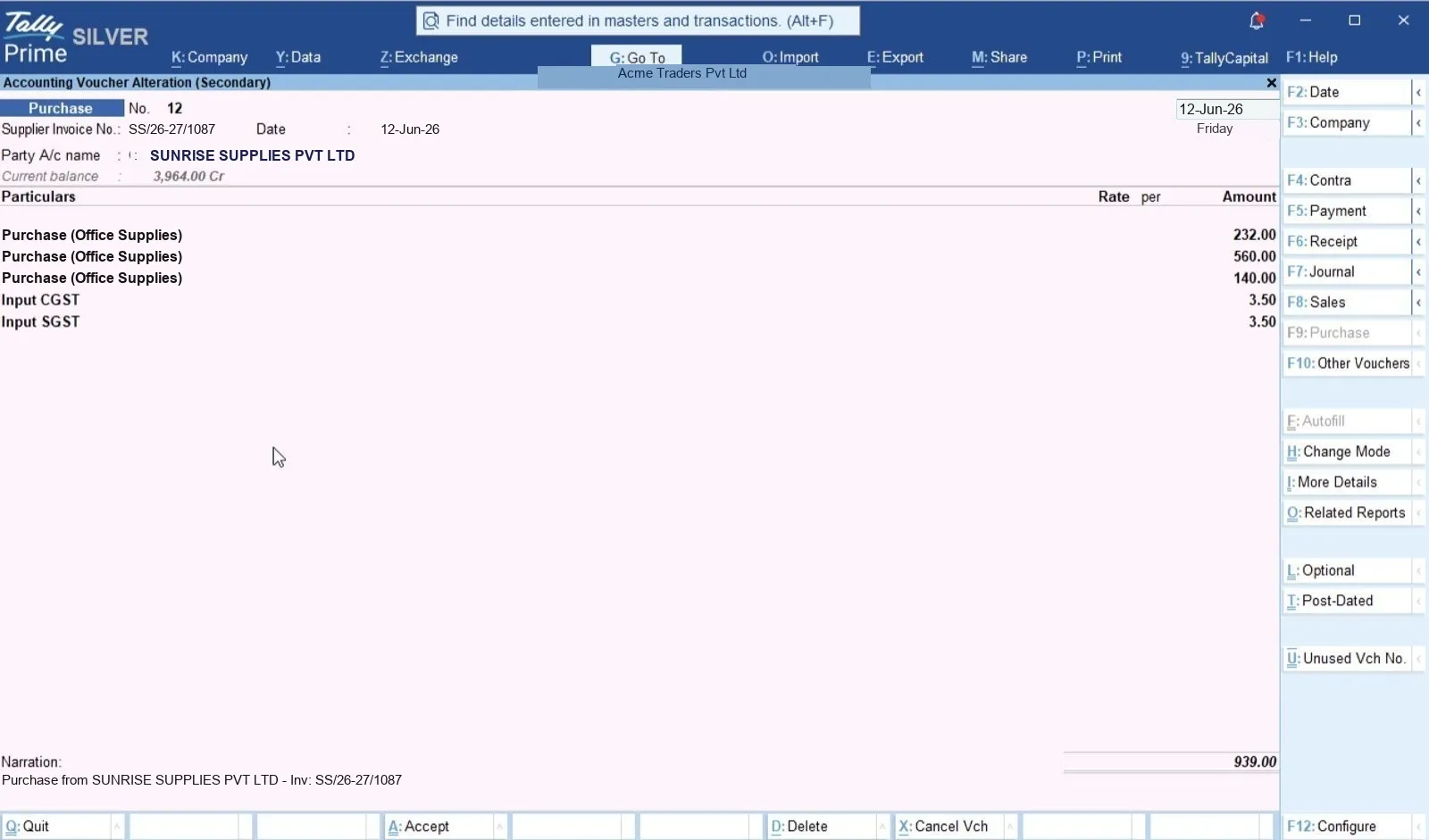 The finished voucher in Tally Prime. Nobody typed a line of it.
Once your first few invoices go through cleanly, switch on Auto-Push and approved invoices post to Tally on their own.
When the supplier isn't in Tally yet
New suppliers are where manual entry usually stalls. Novota flags a party that doesn't exist in Tally in red and won't let the voucher post until it is fixed.
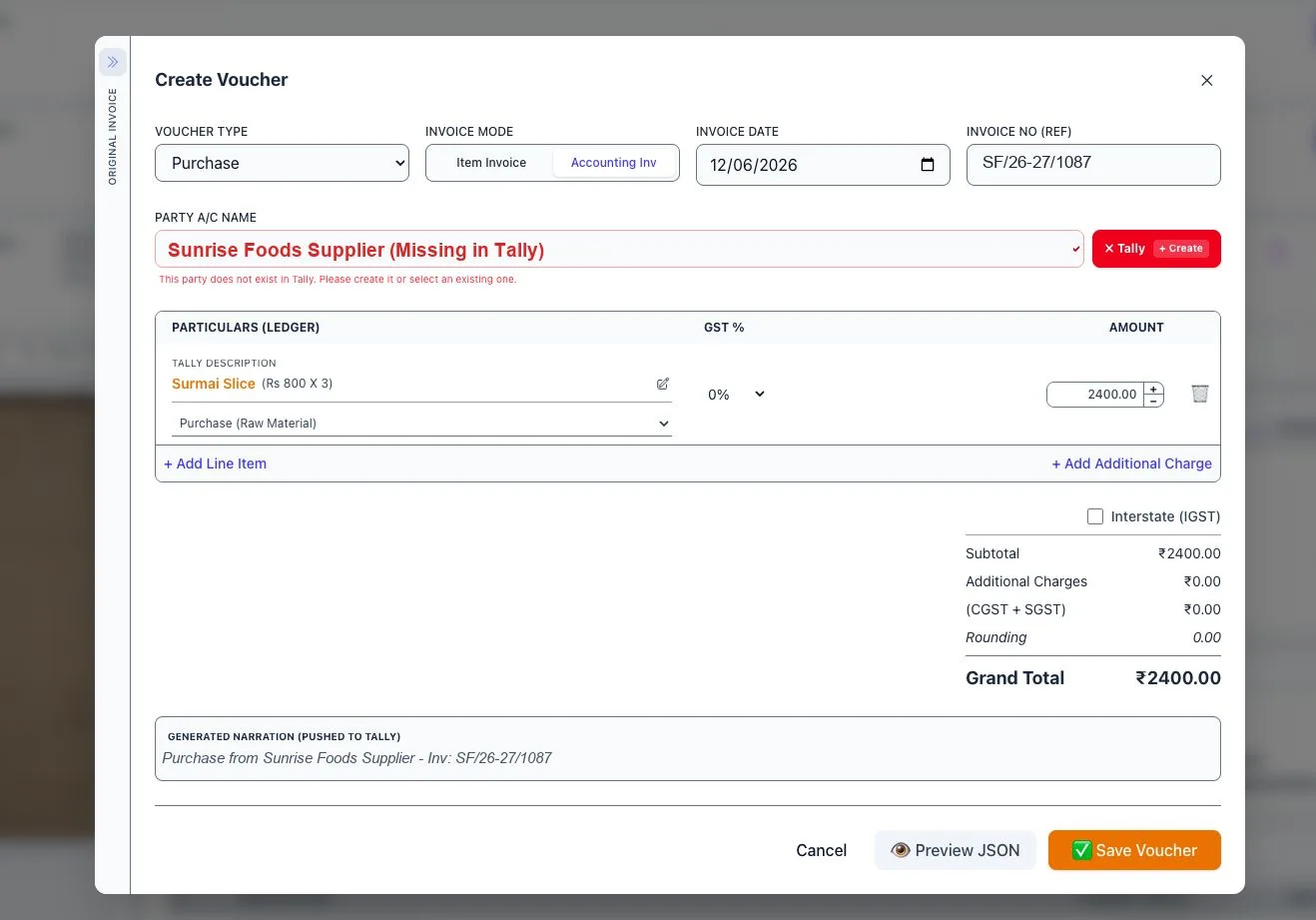 A party that isn't in Tally is flagged before you push, not after Tally rejects it.
Click Create and the new ledger form opens, filled in from the bill: name, address, state, pincode and GSTIN, under Sundry Creditors with the GST registration type set. Save it and the voucher carries on.
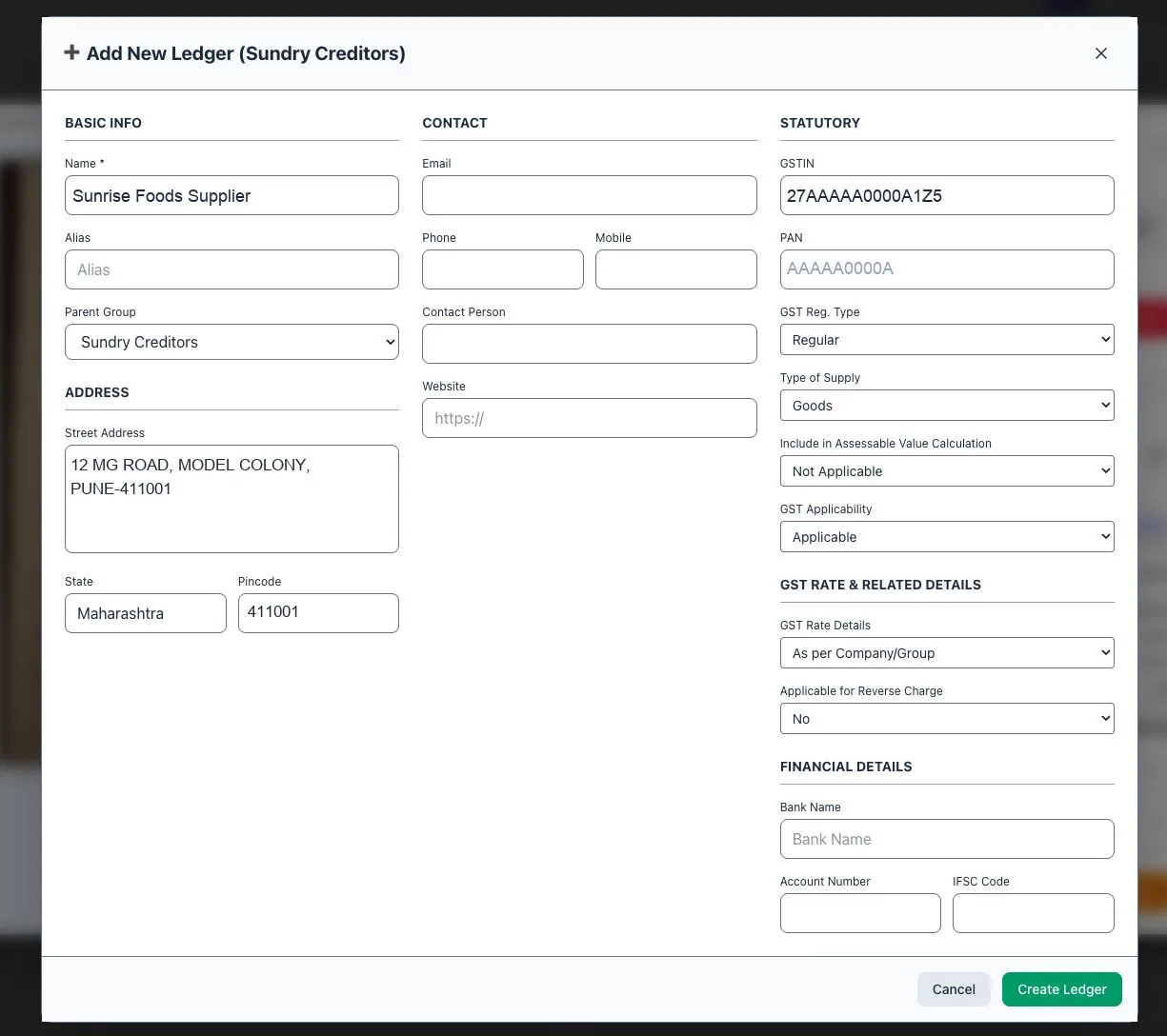 The supplier ledger is created from the invoice details, without leaving the screen.
Starting a fresh Tally company? Seed Ledgers creates the standard purchase, expense and tax ledgers in one go. Choose Minimal or Full; Novota skips any that already exist.
How the Tally connection works
Novota never needs cloud access to your Tally. A small Windows app, the Tally Connector, runs on the computer where Tally Prime is open and talks to Tally on that machine. Novota in your browser hands it the approved voucher; the Connector enters it.
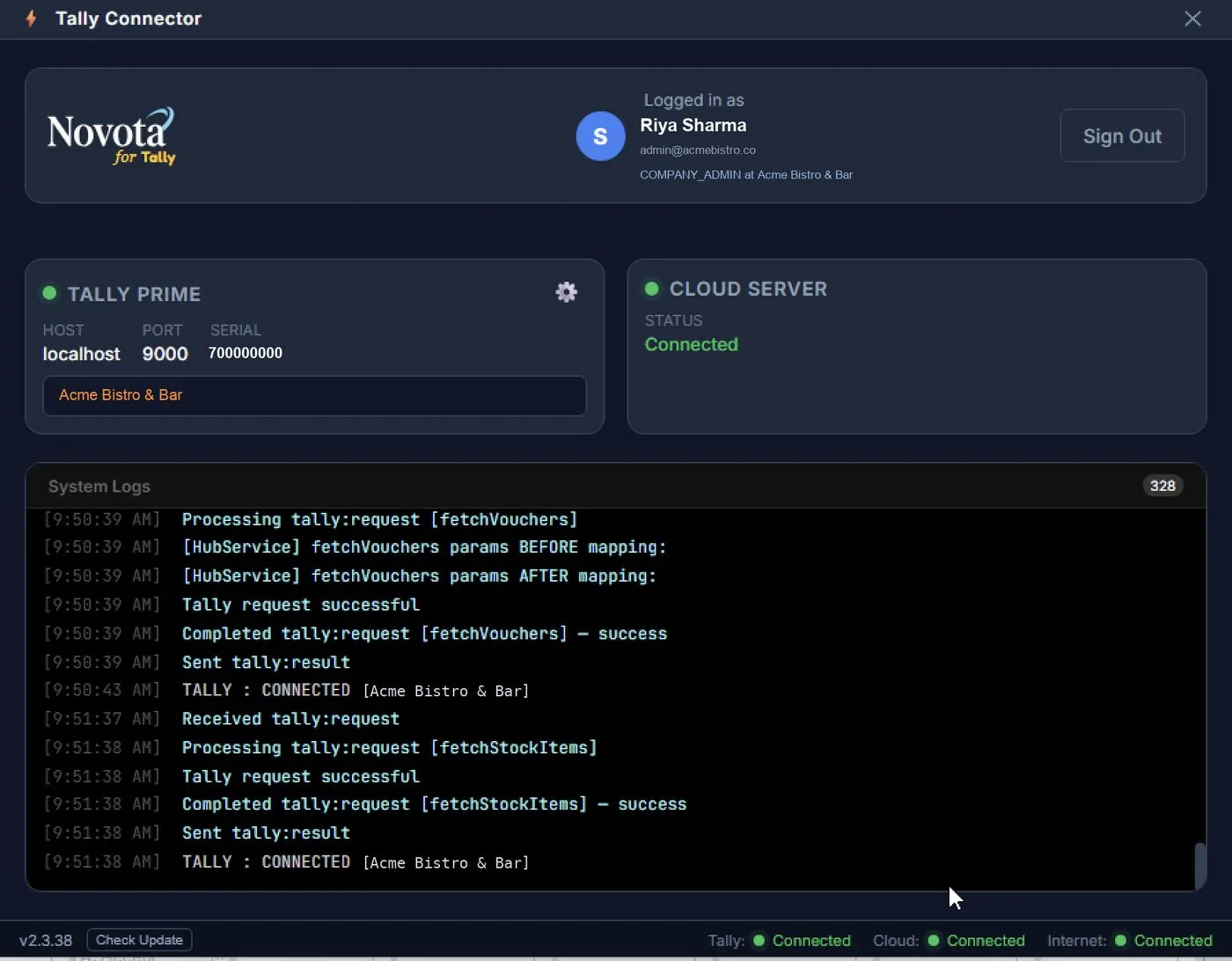 The Tally Connector: signed in, the right company picked, and green dots for Tally, Cloud and Internet.
A few things worth knowing:
- Same company everywhere. Tally, the Connector and Novota must all point to the same company. If they don't, Novota shows a red warning and pauses pushes, so nothing lands in the wrong books.
- A Company Admin signs in to the Connector. Other users work in Novota as usual.
- Your data stays in India. Invoice processing runs on India-region infrastructure.
- Full audit trail. You can see who uploaded, reviewed and approved every invoice.
What Novota doesn't do. It works with Tally Prime only; Tally ERP 9 is not supported. It records purchases in Tally but doesn't file your GST returns. And nothing posts without a person approving it, or switching on Auto-Push.
Who it's for
 Restaurants with dozens of daily supplier bills are where the hours add up fastest.
- Restaurants, bars and hotels with daily bills from vegetable, dairy, meat and beverage suppliers.
- Traders and distributors who buy from many suppliers every week.
- Accountants and CA firms entering purchases for several clients.
- Any business on Tally Prime whose purchase entry falls behind at month end.
You can also use the Invoice Queue on its own, without Tally, to digitise and check bills.
Pricing
Every plan includes the Tally Connector. You pay by invoice page, and unused pages reset each month.
| Plan | Invoice pages a month | Monthly | Annual |
|---|---|---|---|
| Free trial | 20 pages in total | ₹0, no card | — |
| Starter | 50 | ₹500 | ₹5,000 |
| Growth | 100 | ₹950 | ₹9,500 |
| Pro | 200 | ₹1,750 | ₹17,500 |
| Business | 500 | ₹4,000 | ₹40,000 |
Annual plans cost ten months' price for twelve. Top-up packs are available, and larger teams can talk to us about Enterprise.
Getting started
- Open Tally Prime on your Windows PC and load your company.
- Install the Tally Connector on the same PC, sign in with your Novota admin login and pick the same company.
- Check the connection in Novota under Tally → Settings → Hub Connection: it should say Agent Connected.
- Seed your ledgers if the company is new.
- Upload one invoice, open Create Voucher, check it and save. Confirm the voucher in Tally's Day Book.
- Switch on Auto-Push once you trust it.
The free trial's 20 pages are enough to put a week of bills through and compare the result with your own entries.
Frequently asked questions
How do I enter a purchase invoice in Tally Prime?
From Gateway of Tally open Vouchers and press F9 for Purchase. Enter the supplier's invoice number and date, select the party ledger, then add each line against a purchase ledger (or stock item in item invoice mode), followed by the GST ledgers: Input CGST and SGST for a supplier in your state, Input IGST for one outside it. Add a narration and press Ctrl+A to save.
What is the difference between item invoice and accounting invoice in Tally Prime?
Item invoice records stock items with quantity and rate, so inventory moves. Accounting invoice posts amounts to ledgers only, which suits services, expenses and businesses that don't track stock in Tally. Switch between them with Ctrl+H on the voucher screen.
How do I know whether to use CGST + SGST or IGST?
Compare the supplier's state with your place of supply. The first two digits of a GSTIN are the state code. If the supplier is in the same state as you, it is an intra-state purchase with CGST and SGST. If it is a different state, it is inter-state and IGST applies.
Which version of Tally does Novota work with?
Tally Prime, all versions. Tally ERP 9 is not supported.
Does Novota need cloud access to my Tally data?
No. A small Windows app called the Tally Connector runs on the PC where Tally Prime is open and talks to Tally locally. Invoice processing runs on India-region cloud infrastructure, so your data stays in India.
What happens if Novota reads something wrong?
Nothing reaches Tally until you approve it. Every invoice sits in the queue with the original image beside the extracted data, every field is editable, and the totals re-check themselves as you change a line.